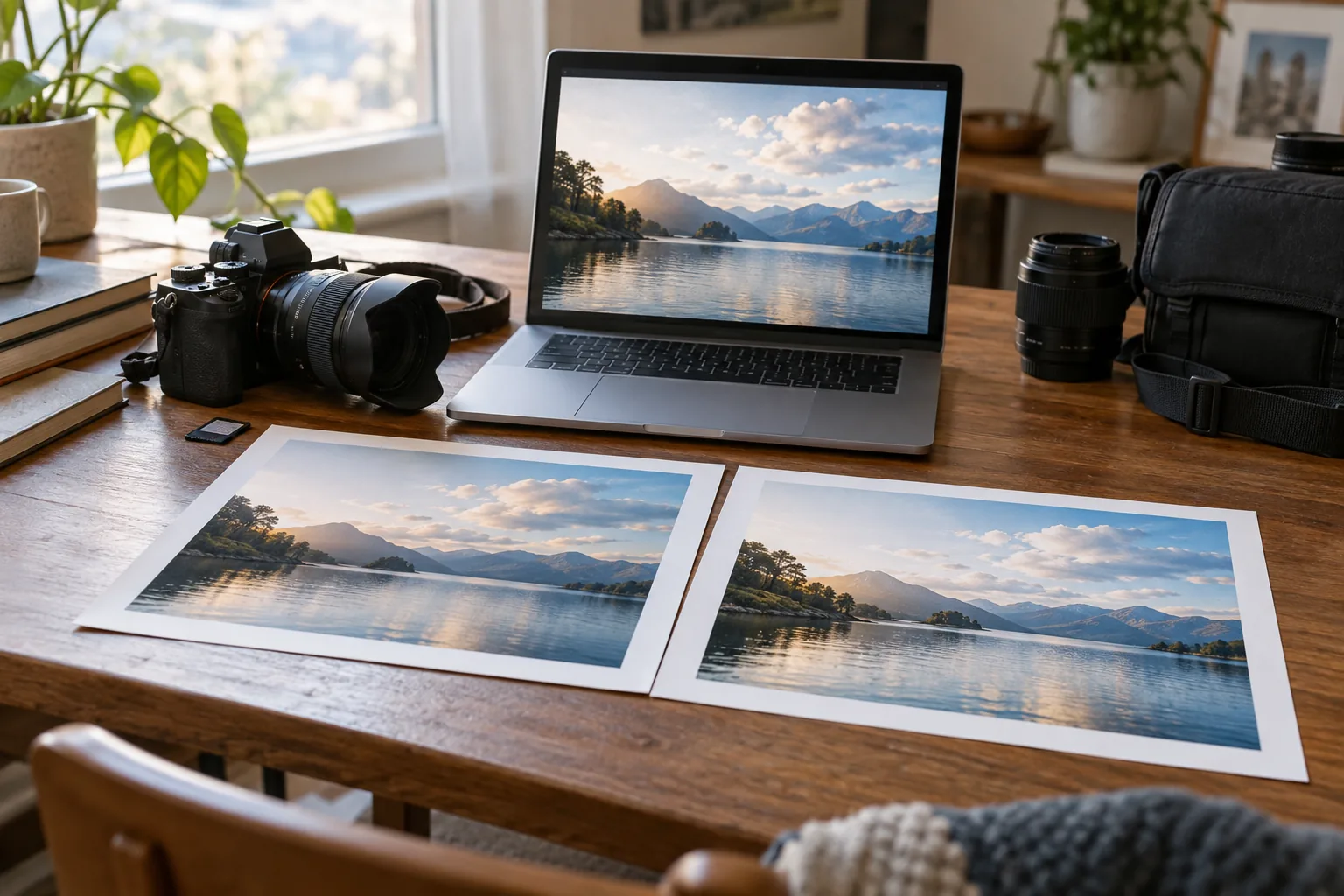
You are about to upload a photo to your blog, but the file is larger than expected. Searching for a smaller format keeps bringing up WebP. The word “compression” raises an immediate question: will your photo’s hair, leaves, or fine detail turn into a blur?
Then you see “lossless.” Keeping the quality while reducing the size sounds ideal. Should you convert every image? Before deciding, there is an important distinction to make.
The filename does not tell you the quality
Google’s WebP documentation describes a web image format that supports both lossy and lossless compression. Two files ending in .webp can have very different results depending on how they were encoded.
Lossless compression stores the image so its pixel information can be recovered when it is decoded. Lossy compression changes or discards some information to make the file smaller. Imagine packing the same belongings more efficiently, versus leaving some belongings behind.
A smooth sky may hide small changes, while tiny lettering or complicated foliage can make them easier to notice. Saving as WebP does not automatically mean saving losslessly. The encoding mode matters.
Is quality 100 the same as lossless?
A quality setting of 100 can sound like a promise of an unchanged image. But Google’s WebP encoder documentation separates lossy quality settings from the lossless option. Choosing maximum quality in lossy mode does not switch on lossless encoding.
Browsers also have functions for exporting images. MDN’s Canvas documentation describes the quality value as a setting for formats that support lossy compression. A high number alone is not proof that an export is lossless.
AHA!’s converter makes the distinction explicit. Lossless mode uses a dedicated encoder to preserve pixels; the smaller-file mode lets you adjust quality. This keeps “quality 100” from being mistaken for “lossless.”
Why did the file get bigger?
Sometimes a well-compressed JPG becomes a larger file when converted to lossless WebP. Google’s WebP FAQ explains that a conversion from a lossy format to a lossless one can increase file size. Changing formats is not a guarantee of a smaller file.
Lossless conversion also cannot recover details already discarded when the JPG was saved. It avoids further pixel loss in the image decoded from that JPG; it does not restore the original capture.
If the result is larger, compare it with the source before assuming something went wrong. Preserving pixels and making an upload lighter are different priorities, and they can lead you to different choices.
Three things to check with your own image
The AHA! WebP Converter & Compressor displays your PNG or JPG beside the converted result. Try lossless first. If the file size does not meet your needs, compare it with a lossy export at a quality setting you choose.
 AHA! TOOLWebP converterConvert JPG or PNG images to WebP and choose the quality and file size.Convert an image
Check the file size, sharpness at the size you will actually use, and whether the information you need is retained. Inspect the edges of small letters, or detailed areas such as hair and leaves. With a transparent PNG, check the background as well.
This tool keeps the image dimensions and does not crop it. Processing happens in your browser. However, it does not copy the original file’s EXIF, GPS data, or color profile. Lossless here refers to the pixels decoded by the browser, rather than an exact archive of the entire original file.
The answer depends on the encoding mode: lossless WebP preserves the decoded pixels, while lossy WebP can change the image’s detail according to its quality settings. Look at the mode and the result, not just the extension. Comparing the two images makes it easier to decide whether a lighter file is the right choice for your photo.